

View attachment title-png.516307_.516307
Are you bored of standard chat broadcast plugins?
HoloBroadcast allows you to broadcast messages as holograms displayed in front of players following their movements.
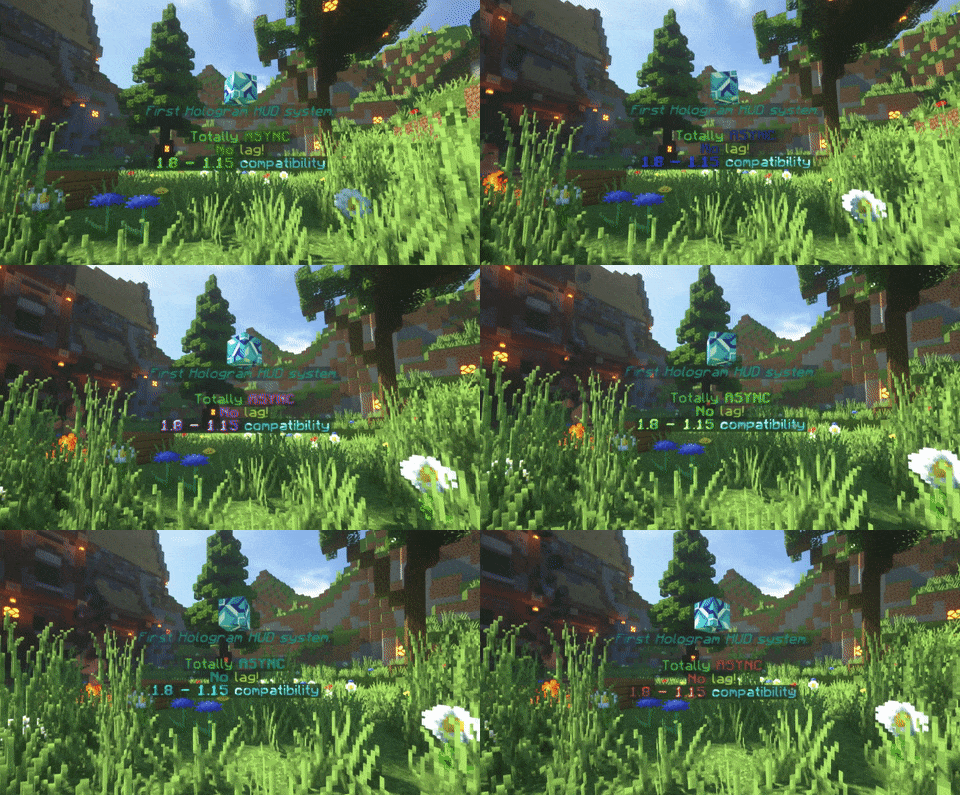
You can also send private hologram messages to individual players, or display a hologram when specific events are triggered (e.g. when a player joins your server.) It is completely transparent to the PvP and build experiences: you can still hit players and place/break blocks through any hologram.
HoloBroadcast simulates a “Head Up Display” (“HUD” is the type of display that Tony Stark has in his Iron Man helmet) to display holographic messages that stick to the player view even when they turn their head or move.
View attachment features-png.516301_.516301
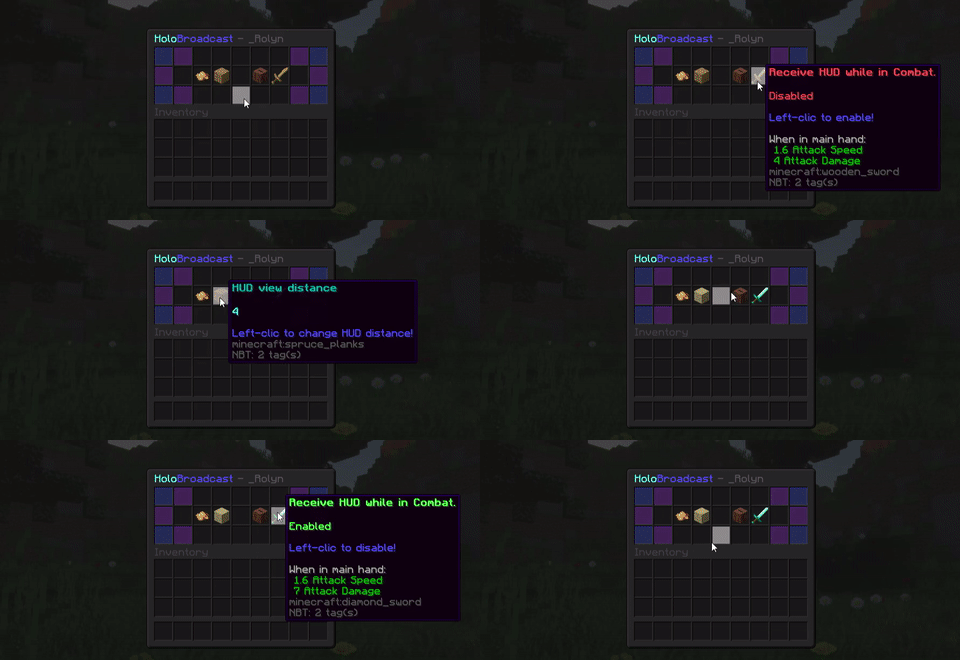
When using the /holobroadcast settings command you will open the personal settings GUI. This menu allows you to change your HoloBroadcast preferences. There are 5 buttons:
When writing an hologram you have many options to format it as you want. Here are the placeholders supported by HoloBroadcast:
HoloBroadcast will generate 5 files when you first install it: settings.yml, messages.yml, animations.yml and players_data.yml. Please do not edit players_data.yml as it stores your player’s custom settings.
Configuring the settings.yml file
The settings.yml file gives you the ability to edit various HoloBroadcast settings.
Configuring the messages.yml file
The messages.yml file allows you to modify HoloBroadcast messages.
Creating animations
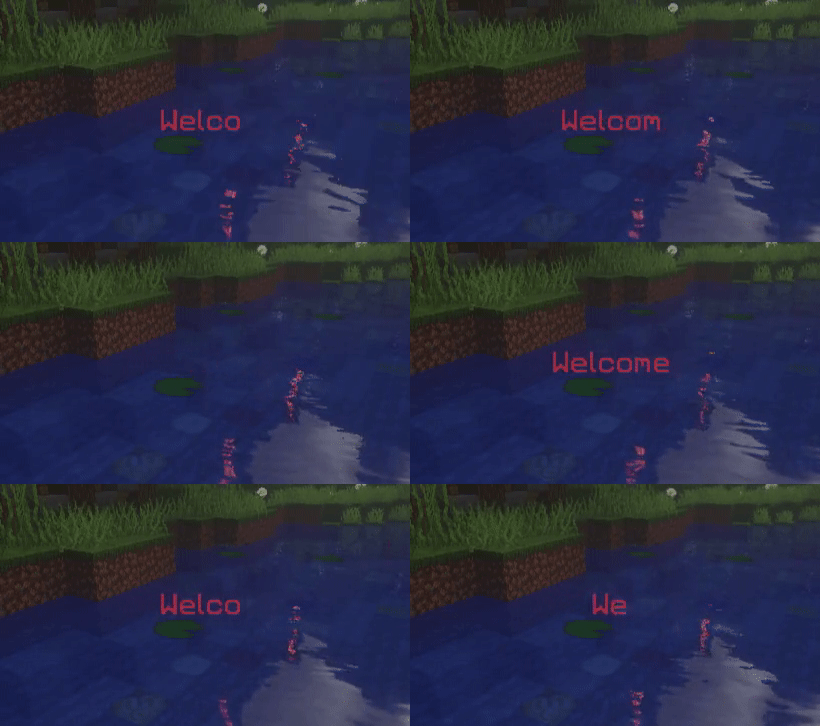
You can use the animations.yml file to create your own animation, it is very easy. Think of an animation as a stop-motion video. Indeed, you create every line (frame) of your animation and HoloBroadcast takes care of displaying them at the correct speed.
Start by writing your animation’s name, this will be your animation’s section in this file. You only need to add two sub-sections: refresh-rate and list. The refresh-rate is the time in ticks between each line of your animation. The list contains every of those lines. We have included some examples in the the animations.yml file to get you started.
Using templates
View attachment installation-png.516302_.516302
You install HoloBroadcast like any other plugin by simply puting the .jar file in the “plugins” directory of your server.
However, when updating HoloBroadcast please follow the steps below:
View attachment our-future-ideas-png.516304_.516304
We have many upgrades in the pipe, which we will release to you as soon as they are ready. Here are a few of our ideas:
View attachment support-png.516306_.516306
Try out HoloBroadcast on the following server!

We strongly believe in collaboration and communication. If you have any issue with HoloBroadcast please contact us before posting a bad review. We will be glad to help you! If you have any issue please follow this procedure:
Click on the Discord picture below

Send a PM to _Rolyn or DevKrazy on Spigot (you can also use the discussion section of the resource).
We put our hearts in the development of HoloBroadcast so we really hope that you will enjoy it. If you have any idea or feature request feel free to contact us!
Are you bored of standard chat broadcast plugins?
HoloBroadcast allows you to broadcast messages as holograms displayed in front of players following their movements.
You can also send private hologram messages to individual players, or display a hologram when specific events are triggered (e.g. when a player joins your server.) It is completely transparent to the PvP and build experiences: you can still hit players and place/break blocks through any hologram.
HoloBroadcast simulates a “Head Up Display” (“HUD” is the type of display that Tony Stark has in his Iron Man helmet) to display holographic messages that stick to the player view even when they turn their head or move.
View attachment features-png.516301_.516301
- broadcast holograms to players
- send private holograms to players
- your players can configure their personal settings using an in-game GUI
- send holograms when specific events are triggered
- animate your holograms
- display items in your holograms
- disable holograms in some worlds
- play sounds in your holograms
- combat tag system
- template system
- NEW auto-announcer system
- NEW particle holograms
- highly configurable
- API for developpers
- supports PlaceHolderAPI and MVdWPlaceHolderAPI
- NEW hook to PlotSquared
- uses parts of CryptoMorin's XSeries library to support multiple Minecraft versions
- Asynchronous holograms (running on their own thread) which means incredible performances
When using the /holobroadcast settings command you will open the personal settings GUI. This menu allows you to change your HoloBroadcast preferences. There are 5 buttons:
- Disable/Enable HUD: this setting is responsible for the display of hologram messages. When enabled you will receive every hologram messages in your HUD, otherwise they will simply appear in the chat. Please note that fancy features such as item will not be displayed in the chat due to Minecraft limitations.
- HUD distance: this allows you to change the distance of your HUD. You can choose between 2, 3 and 4.
- Receive Auto-Announcement Messages: the player can decide to no longer receive messages from the auto-announcer.
- Receive holograms sound: this allows you to enable/disable the sounds from hologams
- Receive HUD while in combat: works like the Disable/Enable HUD but when you are in combat
- Receive Particles: choose to receive or not particles
- /holobroadcast (or /hb or /holo)
- help: displays a help page explaining HoloBroadcast’s commands
- settings: opens the personal GUI Settings
- send <Player> <Message>: sends an hologram message to a player using the default hologram duration (defined in the settings.yml configuration file)
- sendduration <Player> <Duration in Ticks> <Message>: sends an hologram to a player which will last a given amount of ticks
- sendtemplate <Player> <Template Name> [Arguments]: sends an hologram to a player based on a pre configured template, replacing %argument_1%, ... %argument_n% placeholders with the give arguments
- broadcast <Message>: broadcasts a HUD hologram to every player
- broadcasttemplate <Template Name> [Arguments]: broadcasts a HUD hologram to every player based on a pre configured template, replacing %argument_1%, ... %argument_n% placeholders with the give arguments
- clear: clears your current HUD
- clear <Player>: clears a given player’s HUD
- reload: reloads HoloBroadcast's config files
- holobroadcast.help > use the /hb help command
- holobroadcast.settings > use the /hb help command
- holobroadcast.send > use the /hb send command
- holobroadcast.senddurationmessage > use the /hb sendduration command
- holobroadcast.sendtemplate > use the /hb sendtemplate command
- holobroadcast.clear > use the /hb clear command
- holobroadcast.clear.other > use the /hb clear <Player> command
- holobroadcast.reload > use the /hb reload command
- holobroadcast.blankline > use the %bl% placeholder
- holobroadcast.newline > use the %nl% placeholder
- holobroadcast.item > use the %item_XXXX% placeholder
- holobroadcast.sound > use the %sound_x_XXXXX,x,x% placeholder
- holobroadcast.particle > use the %particle_x_XXXXX,x% placeholder
When writing an hologram you have many options to format it as you want. Here are the placeholders supported by HoloBroadcast:
- %nl% jumps to a new line (acts as if you pressed the “return” key of your keyboard) (perm: holobroadcast.newline)
- %bl% creates a blank line (perm: holobroadcast.blankline)
- %item_MATERIAL% or %item_MATERIAL:ID% creates an item. (perm: holobroadcast.item)
- %animation_name% animates the text using an animation defined in the animations.yml configuration file.
- %sound_frequence_SOUND_NAME,volume,pitch% repeats a given sound in your hologram every X (X being the frequence parameter) ticks. For example %sound_10_LAVA_POP,1,2.3% will play the lava pop sound every 10 ticks while your hologram is alive at a volume of 1 and a pitch of 2.3. (perm: holobroadcast.sound)
- %particle_frequence_PARTICLE_NAME,amount% repeats a given particle in your hologram every X (X being the frequence parameter) ticks. For example %particle_10_MOBSPELL,2% will play 2 mob spell particles every 10 ticks while your hologram is alive. (perm: holobroadcast.particle)
- %template_templatename% uses one of your templates defined in your templates.yml file. (However %argument_k% placeholders won't be replaced if you do not use the broadcasttemplate or sendtemplate command).
- You can also use any placeholder from PlaceHolderAPI or MVdWPlaceHolderAPI
HoloBroadcast will generate 5 files when you first install it: settings.yml, messages.yml, animations.yml and players_data.yml. Please do not edit players_data.yml as it stores your player’s custom settings.
Configuring the settings.yml file
The settings.yml file gives you the ability to edit various HoloBroadcast settings.
Configuring the messages.yml file
The messages.yml file allows you to modify HoloBroadcast messages.
Creating animations
You can use the animations.yml file to create your own animation, it is very easy. Think of an animation as a stop-motion video. Indeed, you create every line (frame) of your animation and HoloBroadcast takes care of displaying them at the correct speed.
Start by writing your animation’s name, this will be your animation’s section in this file. You only need to add two sub-sections: refresh-rate and list. The refresh-rate is the time in ticks between each line of your animation. The list contains every of those lines. We have included some examples in the the animations.yml file to get you started.
Using templates
View attachment installation-png.516302_.516302
You install HoloBroadcast like any other plugin by simply puting the .jar file in the “plugins” directory of your server.
However, when updating HoloBroadcast please follow the steps below:
- Backup HoloBroadcast.jar and its config files.
- Stop your server.
- Delete HoloBroadcast.jar and its config files from your server.
- Put the new HoloBroadcast.jar file in your plugins folder.
- Start your server.
- HoloBroadcast should be correctly installed and will generate the latest config files. They will have default values so if you want to put your old settings back, copy them from your backup config files.
View attachment our-future-ideas-png.516304_.516304
We have many upgrades in the pipe, which we will release to you as soon as they are ready. Here are a few of our ideas:
- DONE Add the possibility to put particles in your holograms
- DONE Add sound effects when holograms spawn/despawn
- Add the possibility to create static holograms and control who can see them
- DONE Combat Tag
- More pre-defined animations
- BungeeCord and Database support
- DONE Templates support
- DONE Sound holograms
View attachment support-png.516306_.516306
Try out HoloBroadcast on the following server!
We strongly believe in collaboration and communication. If you have any issue with HoloBroadcast please contact us before posting a bad review. We will be glad to help you! If you have any issue please follow this procedure:
- Replace your current HoloBroadcast jar with the latest that was correctly functioning on your server.
- Contact us and send us a screenshot of the error in your console logs and describe as precisely as possible the steps that cause this error.
Click on the Discord picture below
Send a PM to _Rolyn or DevKrazy on Spigot (you can also use the discussion section of the resource).
We put our hearts in the development of HoloBroadcast so we really hope that you will enjoy it. If you have any idea or feature request feel free to contact us!


